
Searching your Bookshelf
One search covers every cookbook, magazine, and recipe on your Bookshelf.
The search box
Type what you’re looking for: an ingredient, a dish, an author, or a book title. A few things to know:
- Search matches recipe names, ingredients, authors, and book titles.
- More words means fewer results. Search uses AND, so “chicken mushrooms tomatoes” finds recipes with all three.
- Quotes match exactly. “chicken pot pie” skips the chicken-and-leek variations.
- To search one book or author, put the name in quotes: “Ina Garten” plus any other terms.
- To exclude a word, put a minus in front, like “chicken -zucchini”. An asterisk matches word beginnings, so “pomeg* ragh*” finds pomegranate recipes by Raghavan Iyer.
- To see only recipes where an ingredient is the star, search “title:” plus the ingredient. For example, “title:carrots” shows only recipes with carrots in the title.
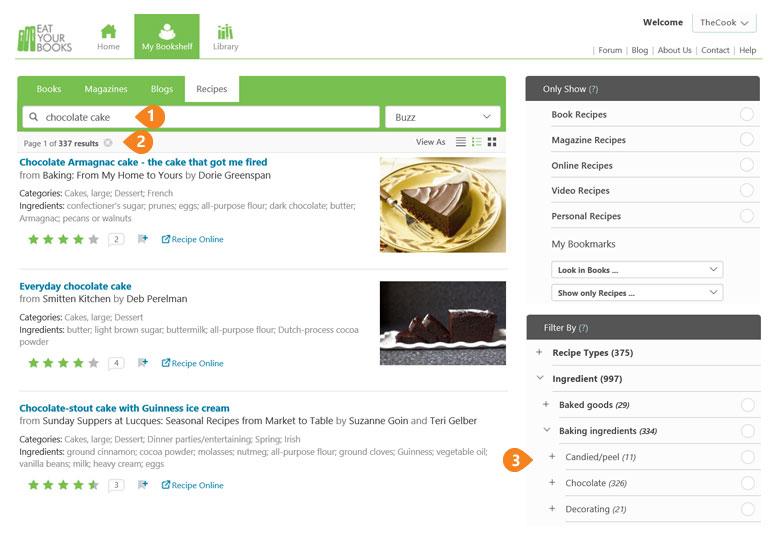
A recipe search across your Bookshelf, with the Filter By column on the right.
The filters
The search box is quick; the filters are precise. Searching “chicken” matches every mention of the word, including chicken stock and books with “chicken” in the title. Selecting Ingredients > Meat, poultry & game > Chicken in the Filter By column finds recipes that actually cook with chicken.
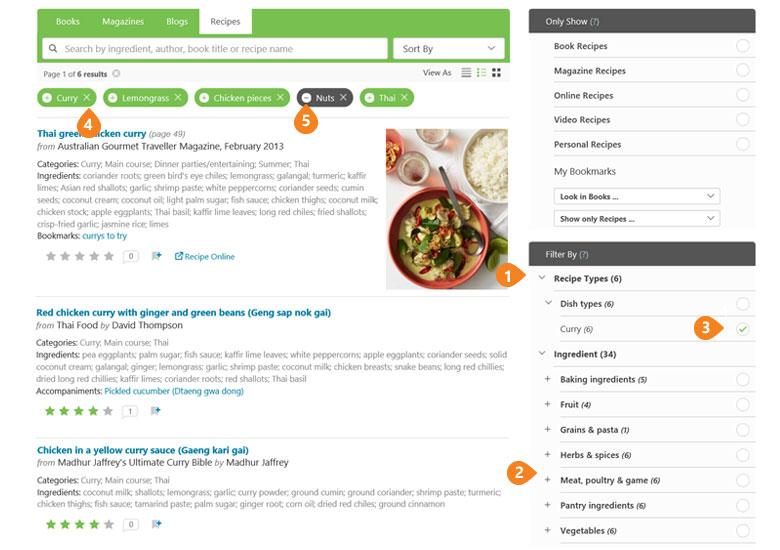
Filters in use. Each one you pick appears as a chip above your results.
- Open a category in the Filter By column (on the right on a computer, under the Filter link on a phone) and click + next to anything you want: recipe types, ingredients, courses, ethnicities, occasions, nutrition.
- Combine filters freely. Curry plus Chicken plus Lemongrass finds a Thai chicken curry. Filters use AND, so Soups plus Thai means Thai soups, not all soups plus all Thai.
- Remove a filter with the x. To exclude one, click its + so it flips to a black minus, and recipes matching it disappear from your results. That’s how you search around an ingredient you’re out of or one you’re allergic to.
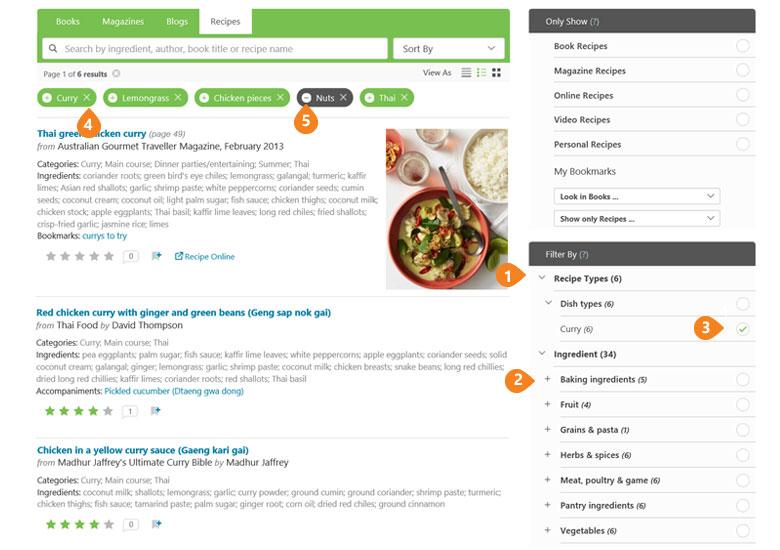
The filter chips. A green + means include; clicking it flips it to a black minus.
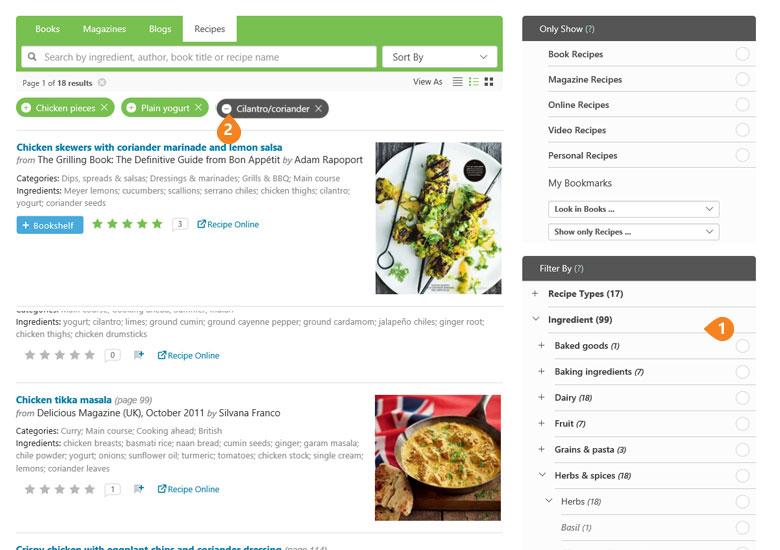
Excluding an ingredient: the black minus takes matching recipes out of your results.
A note for allergies: in books indexed under our older rules, small quantities of pantry staples like butter, milk, and eggs may not be listed, so excluding an ingredient won’t necessarily exclude every recipe that contains it. Always check the full recipe in your book.
Only Show: choosing your sources
The Only Show section narrows results by source: book recipes, magazines, blogs, online recipes, or any combination. Tick Book Recipes plus Online Recipes to see cookbook recipes with online links. If you use Bookmarks, this is also where you search within a Bookmarked group, like just the books at the beach house.
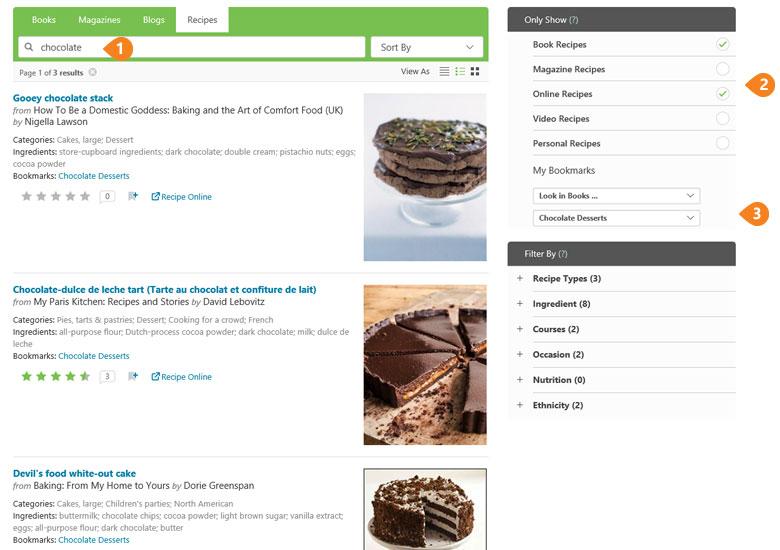
Only Show narrows results by source, and lets you search within a Bookmark.
Searching for books
Everything above works for books too; switch to the Books tab. A few book-specific tools:
- Tick Indexed Books to see only books whose recipes are searchable.
- Book results show member ratings, notes (speech bubble), how many Bookshelves the book is on (heads icon), other editions (link icon), and the book’s indexing status.
- The Expand/Collapse toggle adjusts how much detail you see and print.
Reading and sorting your results
Results sort by relevance by default. Change it with Sort by, which includes Buzz, the combination of ratings and notes a recipe or book has received. (Buzz doesn’t mean something is the most loved, only that it’s getting the most conversation.) The View As icons switch between text and image layouts. On any recipe, the bookmark icon tags it, and the stars show member ratings.